Customizing
Customize the appearance, layout, and behavior of Everything.
Appearance
Layout
Formatting
User Settings
See also
Appearance
Customize the theme and colors of Everything.
To show Everything in dark mode:
In Everything , from the View menu, under the Theme submenu, check Dark .
To set the Everything accent color:
In Everything , from the Tools menu, click Options .
Click the Fonts and Colors tab on the left.
Click the color button to the right of accent color .
Select a accent color and click OK .
click OK .
To set the font for any control:
In Everything , from the Tools menu, click Options .
Click the Fonts and Colors tab on the left.
Select an item.
Set the desired font.
Click OK .
To set the colors for any control state:
In Everything , from the Tools menu, click Options .
Click the Fonts and Colors tab on the left.
Select an item.
Select an item state.
Set the desired colors.
Click OK .
To change the Everything icon:
Copy your custom icon file to: %APPDATA%\Everything\Everything.ico If Store settings and data in %APPDATA%\Everything is disabled, copy your custom icon file to Everything.ico in the same location as your Everything.exe.In Everything, from the File menu, click Exit.
Restart Everything.
Download the Everything Icon Pack:
Everything-Icons.zip
To set a custom Everything tray icon:
In Everything , from the Tools menu, click Options .
Click the Advanced tab on the left.
To the right of show settings containing , search for icon
Select tray_icon_filename and click Edit... .
Select a custom ICO file and click Open.
Cick OK.
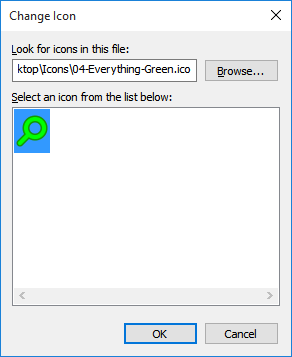
To change the Everything Taskbar button icon:
Right-click the Everything taskbar button .
Right-click Everything .
Click Properties . Click Change Icon .
Click Browse...
select a new icon and click Open .
Click OK to change the icon.
Click OK . In Everything, from the File menu, click Exit.
Restart Everything.
Layout
Customize the layout of Everything.
Format displayed text.
To customize the Everything search window caption, tab title, or taskbar notification tooltip:
In Everything , from the Tools menu, click Options .
Click the Advanced tab on the left.
To the right of show settings containing , search for format
Select window_title_format , tabs_title_format or taskbar_notification_title_format
Set the value to the custom format: $s?{$s - }$t$i?{ ($i)}$s?{$s - }$t$t$i?{ ($i)}The custom format can include any of the following:
Variable Description $sCurrent search $tEverything (localized) $vVersion $iInstance name
Use the following syntax to optionally display text:
Syntax Description $x?{text}Display text if $x is not empty.
Click OK .
Example formats:
Format Search Title $s?{$s - }My Search apples apples - My Search $s?{$s - }My Search My Search
Note: Changing the window_title_format will also affect the title on the taskbar button.
User Settings
Override Everything settings on startup with a
user.ini.
External File Manager
To open paths in an external file manager:
To use a custom date format in Everything:
Exit Everything.
Open your Everything.ini .
Change the following line:
code Description d Day of month as digits with no leading zero for single-digit days. dd Day of month as digits with leading zero for single-digit days. ddd Day of week as a three-letter abbreviation. The function uses the LOCALE_SABBREVDAYNAME value associated with the specified locale. dddd Day of week as its full name. The function uses the LOCALE_SDAYNAME value associated with the specified locale. M Month as digits with no leading zero for single-digit months. MM Month as digits with leading zero for single-digit months. MMM Month as a three-letter abbreviation. The function uses the LOCALE_SABBREVMONTHNAME value associated with the specified locale. MMMM Month as its full name. The function uses the LOCALE_SMONTHNAME value associated with the specified locale. y Year as last two digits, but with no leading zero for years less than 10. yy Year as last two digits, but with leading zero for years less than 10. yyyy Year represented by full four digits. gg Period/era string. The function uses the CAL_SERASTRING value associated with the specified locale. This element is ignored if the date to be formatted does not have an associated era or period string.
Save changes to the Everything.ini
Restart Everything.
To use a custom time format in Everything:
Exit Everything.
Open your Everything.ini .
Change the following line:
Code Description h Hours with no leading zero for single-digit hours; 12-hour clock. hh Hours with leading zero for single-digit hours; 12-hour clock. H Hours with no leading zero for single-digit hours; 24-hour clock. HH Hours with leading zero for single-digit hours; 24-hour clock. m Minutes with no leading zero for single-digit minutes. mm Minutes with leading zero for single-digit minutes. s Seconds with no leading zero for single-digit seconds. ss Seconds with leading zero for single-digit seconds. t One character time-marker string, such as A or P. tt Multicharacter time-marker string, such as AM or PM. SSS Milliseconds with leading zeros, must be the last part of the format.
Save changes to the Everything.ini
Restart Everything.
Translucent Selection Rectangle
To change the translucency see
translucent_selection_rectangle_alpha
To change the background color see
translucent_selection_rectangle_background_color
To change the border color see
translucent_selection_rectangle_border_color
Change the default search and search settings
See
home
Fonts and colors
To change the result list font see
Fonts and colors
To change the search edit font see
search_edit_font and
search_edit_font_size
To change the status bar font see
status_bar_font and
status_bar_font_size
To change the result list header font see
header_font and
header_font_size
To change the status bar format see
statusbar_selected_item_format
HTTP Server
See
Change the default HTTP files .
ETP/FTP Welcome Message
See
etp_server_welcome_message in the Everything.ini.
See Also